Create and review hunts
Use the preserved process, filename, and hash hunt procedures to collect endpoint evidence and review the results in a notebook.
Use harmless indicators in your own lab
The preserved screenshots document an earlier controlled demonstration involving offensive tooling. Do not reproduce that payload. For practice, create a harmless file with a known name and hash, scope the hunt only to authorised test clients, and include a negative control.
Hunt readiness
Write the observable you want to test before selecting an artefact.
Confirm labels, client count, last-seen state, artefact cost, timeouts and resource limits.
Define the expected positive result, negative control and reviewable export.
Introduction to Velociraptor
Creating a Process Hunt
A Windows reverse shell named 1.exe was generated and executed on the Windows Server 2019 host, connecting to the Kali machine. The session was then switched from Command Prompt to PowerShell.
[*] Started reverse TCP handler on 10.0.0.22:4444
[*] Command shell session 1 opened (10.0.0.22:4444 -> 10.0.0.40:49886) at 2024-09-18 19:56:51 -0400

Shell Banner:
Microsoft Windows [Version 10.0.17763.3650]
-----

C:\Users\Administrator\Downloads>whoami
whoami
ws2019\administrator

C:\Users\Administrator\Downloads>powershell
powershell
Windows PowerShell
Copyright (C) Microsoft Corporation. All rights reserved.
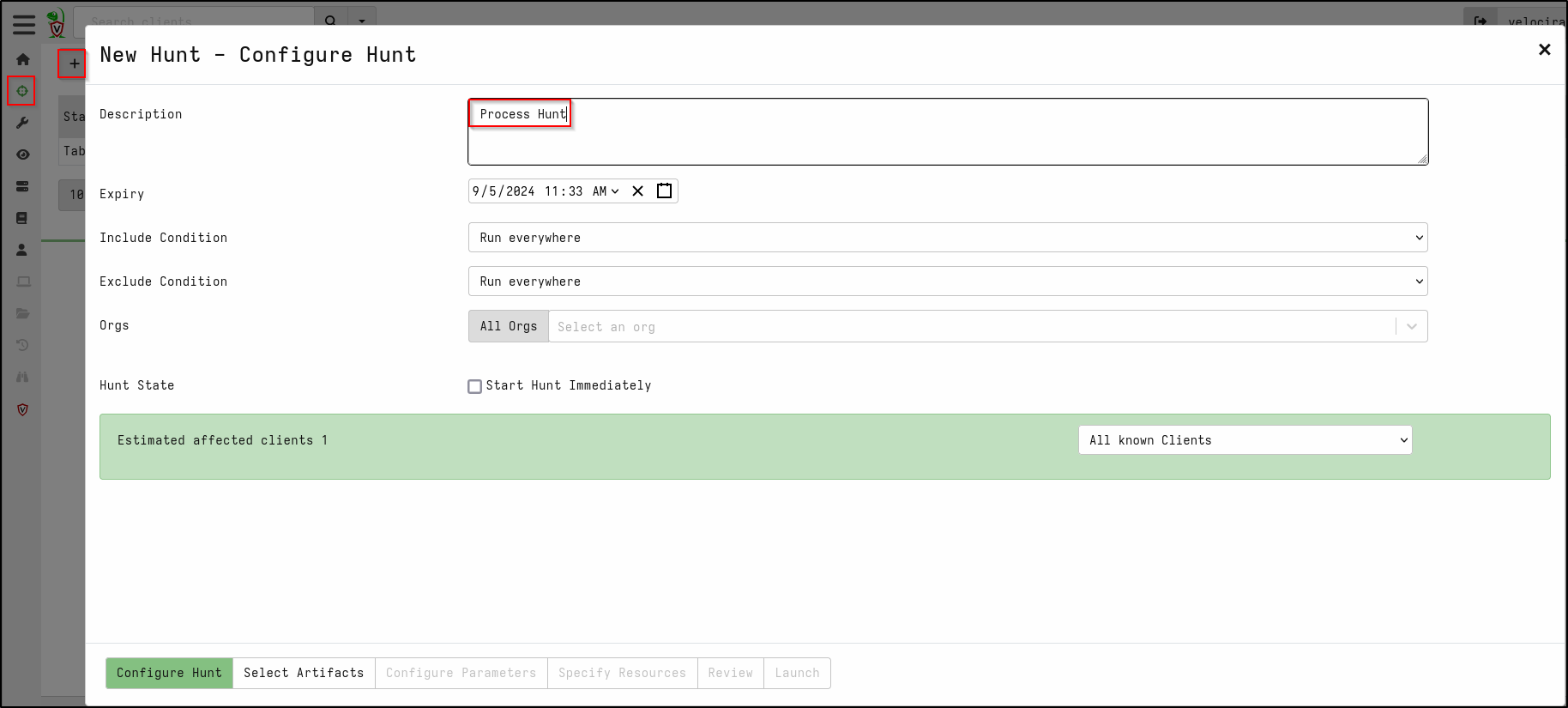
Create New Hunt by clicking Hunt icon and + icon
In the Configure Hunt tab, add the description Process Hunt
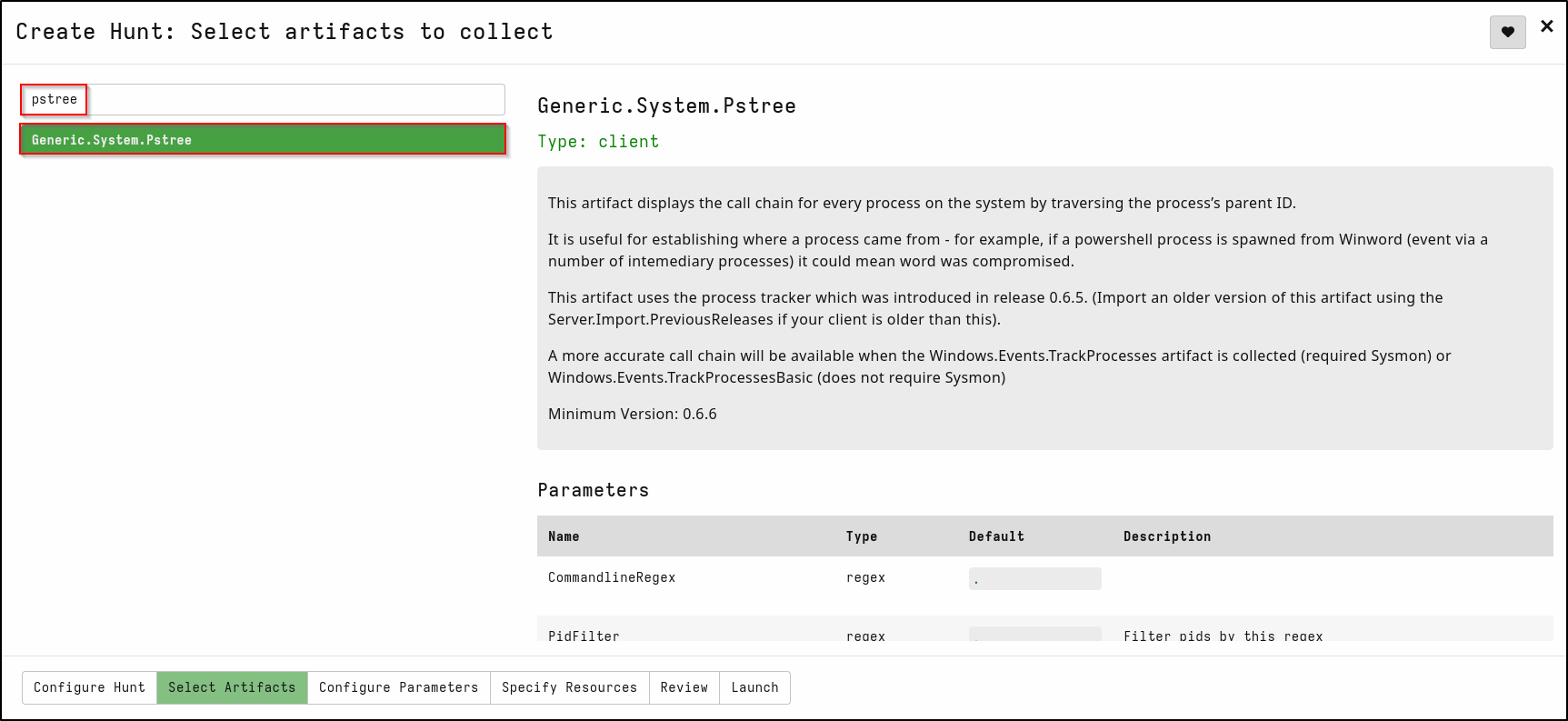
In the Select Artifacts tab, search for pstree. Select Generic.System.Pstree
This artifact displays the call chain for every process on the system by traversing the process’s parent ID.
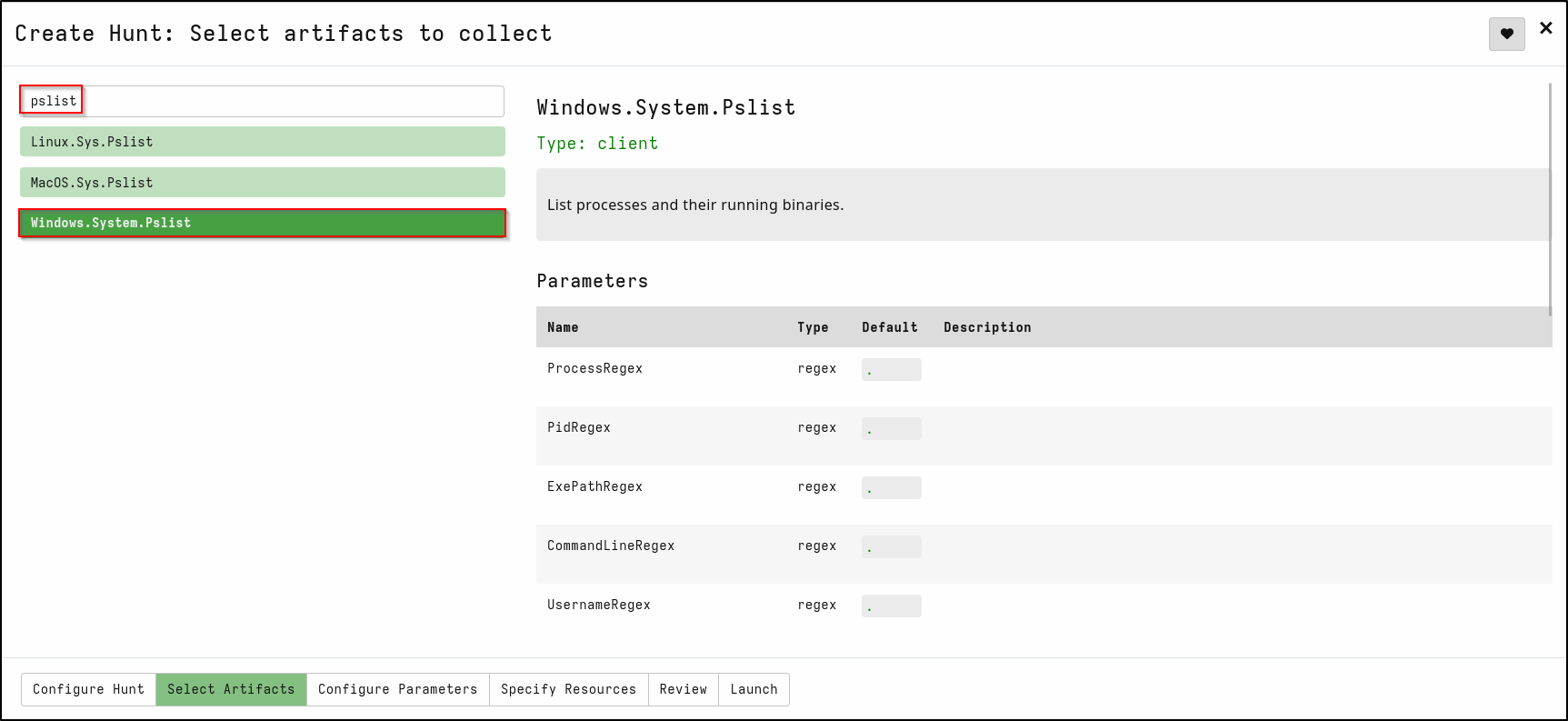
In the same tab, search for pslist and select Windows.System.Pslist
This artefact lists processes and their running binaries.
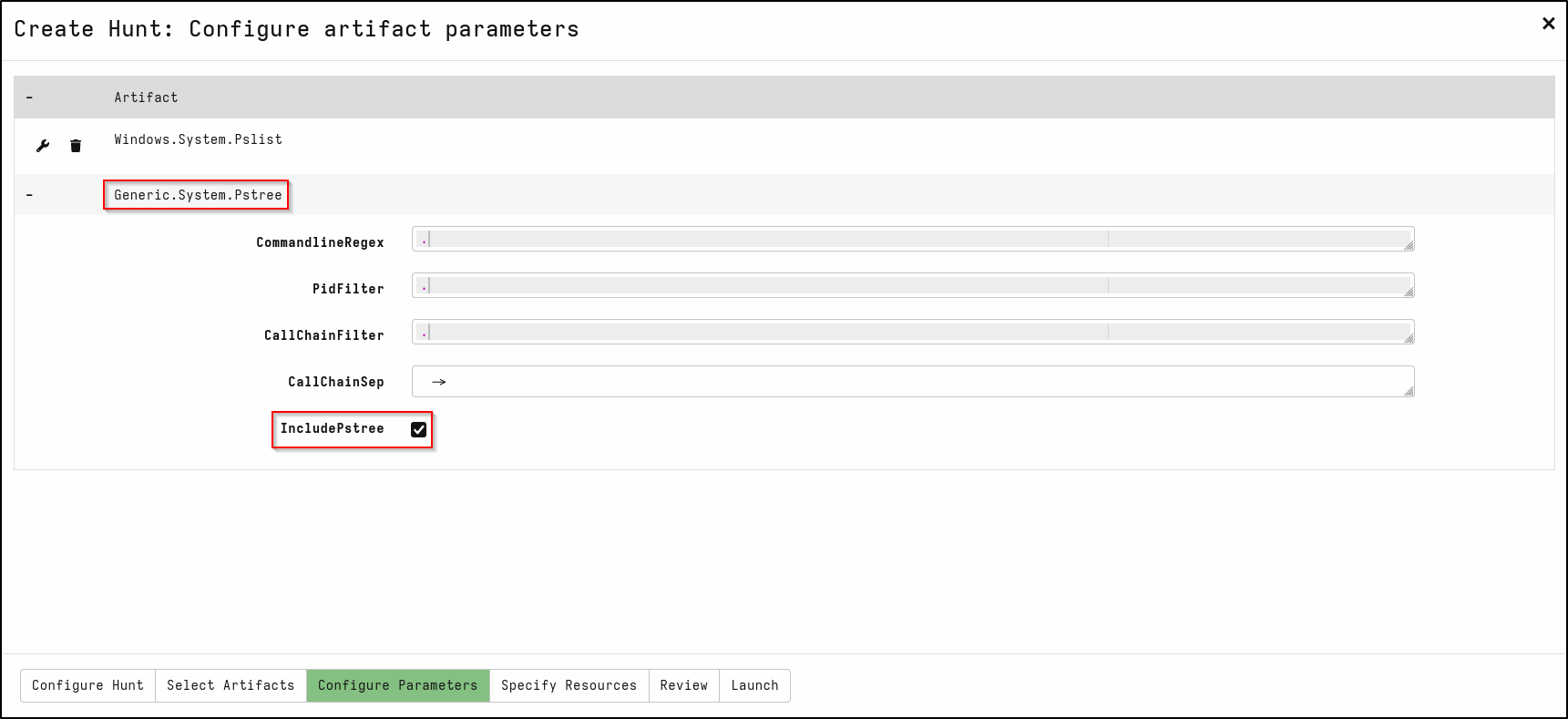
In the Configure Parameters tab, Edit Generic.system.Pstree
Select IncludePstree
Select Review then Launch. Select the Hunt and click Play button to launch it.
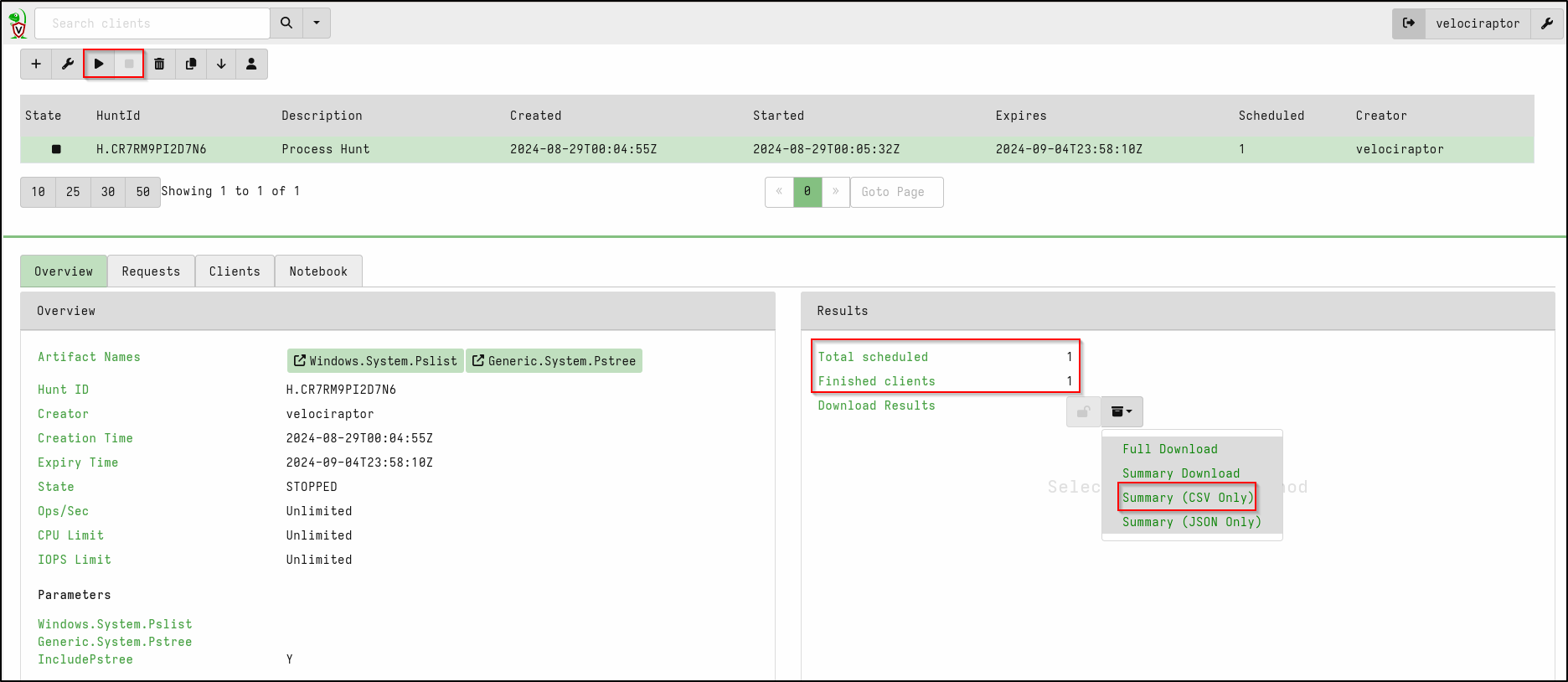
Once the Hunt is complete (indicated by Total schedules and Finished clients), click the stop button to stop the Hunt.
Check the results on the Notebook tab on web GUI.
As shown in the screenshot below, the suspicious activity is detected.
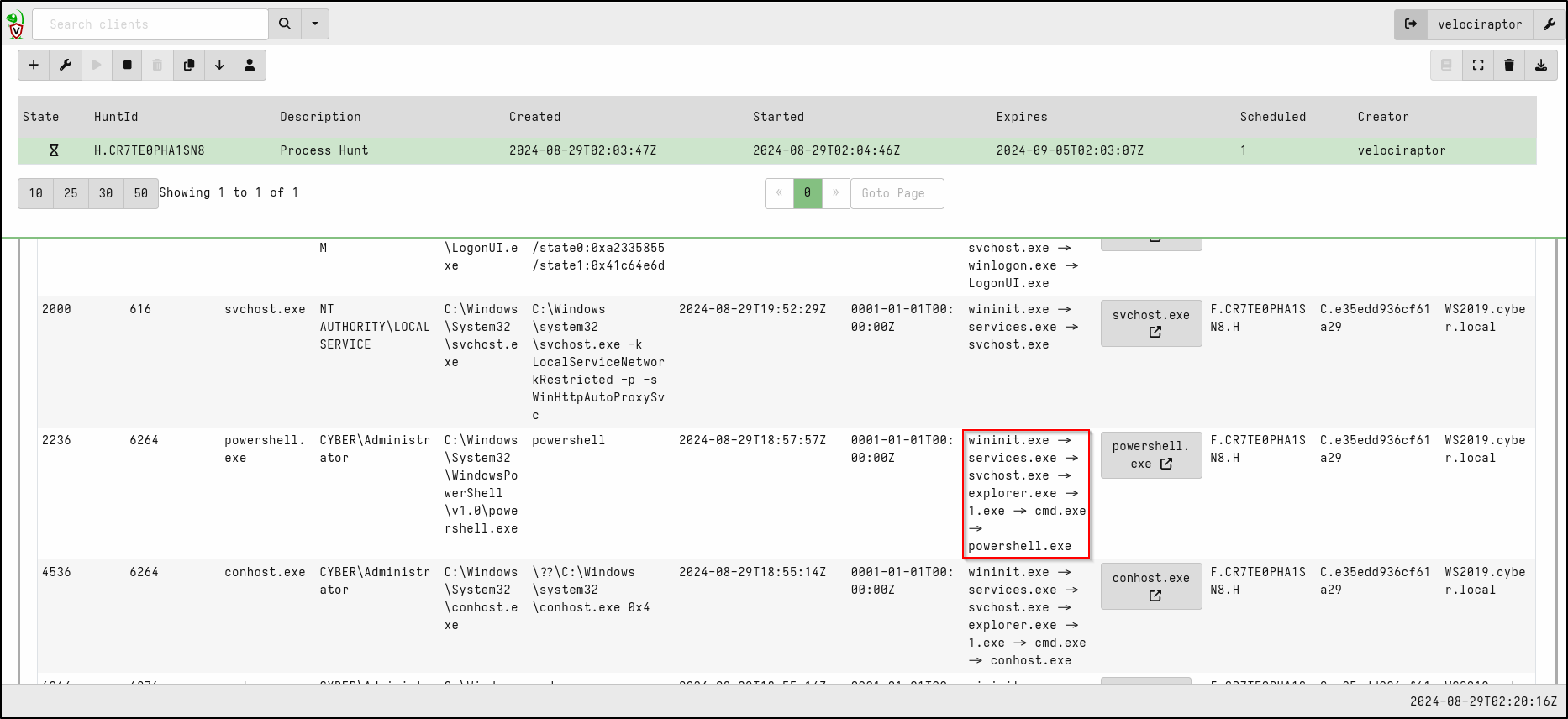
Alternatively, if you prefer to Download Results as a CSV file and view it in an Excel, this can be done in the Results Section > Download Results
Adding Client Labels
To create a label, click the magnifying glass icon, select the target host, then click the label icon. Name the new label (e.g., windows).
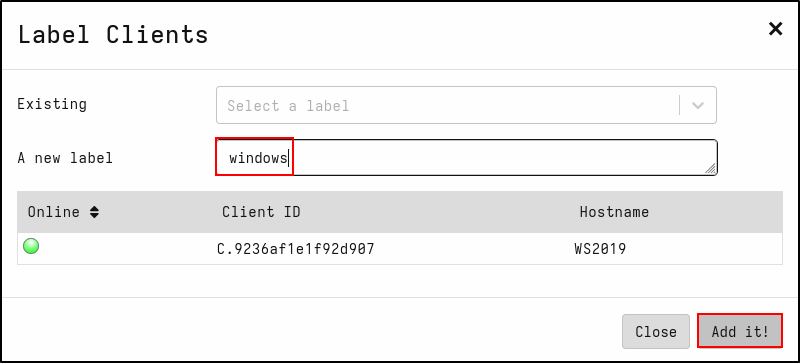
Verify that the label has been created.

Creating a Filename Search Hunt
In the preserved controlled demonstration, a PowerShell script called
justascript.ps1 was created and then removed on the Windows client. Use a
harmless text file or script in your own authorised training lab.
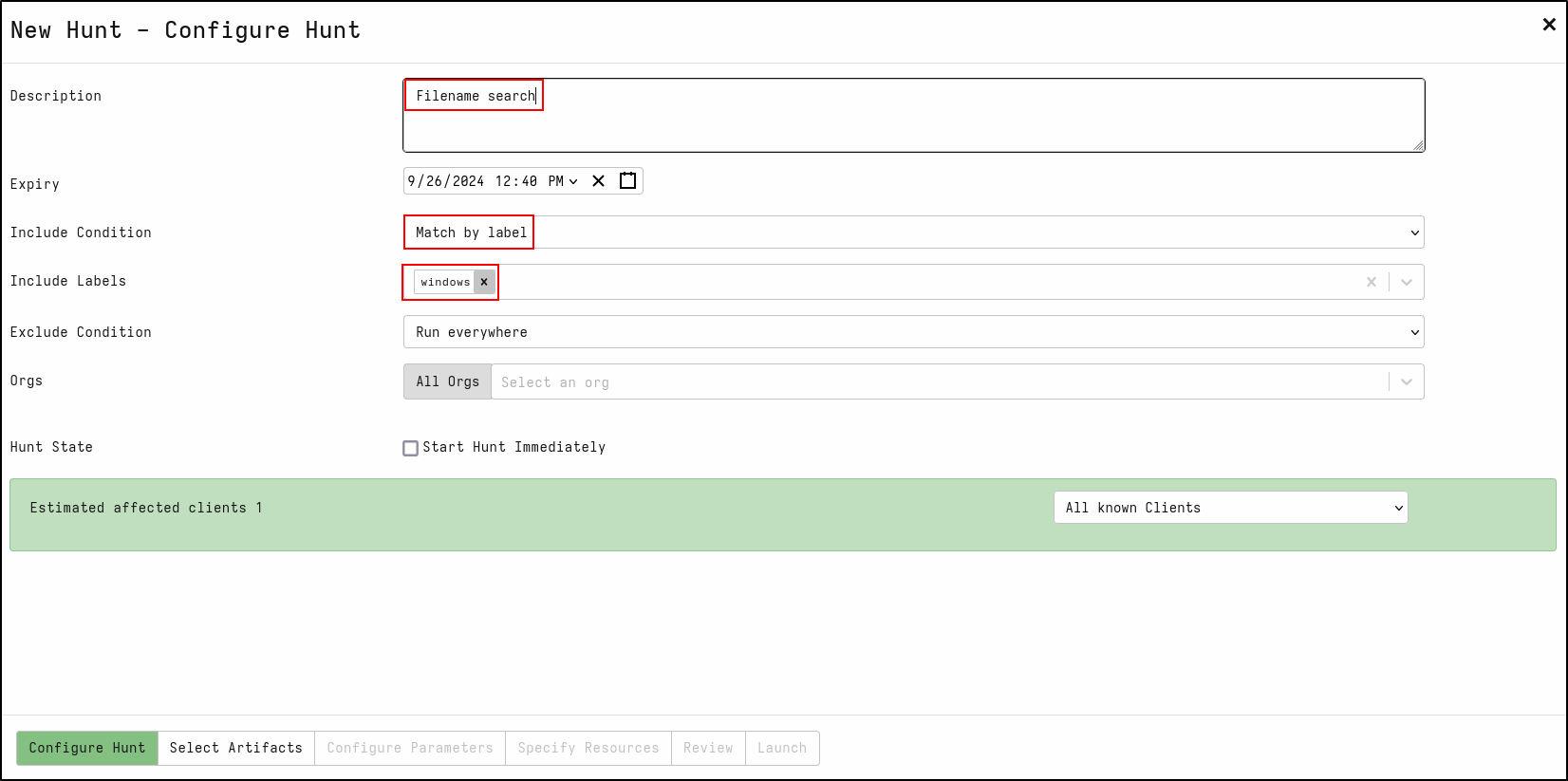
Create a new hunt with the description Filename search
For Include Condition, select Match by label
For Include Labels, select windows
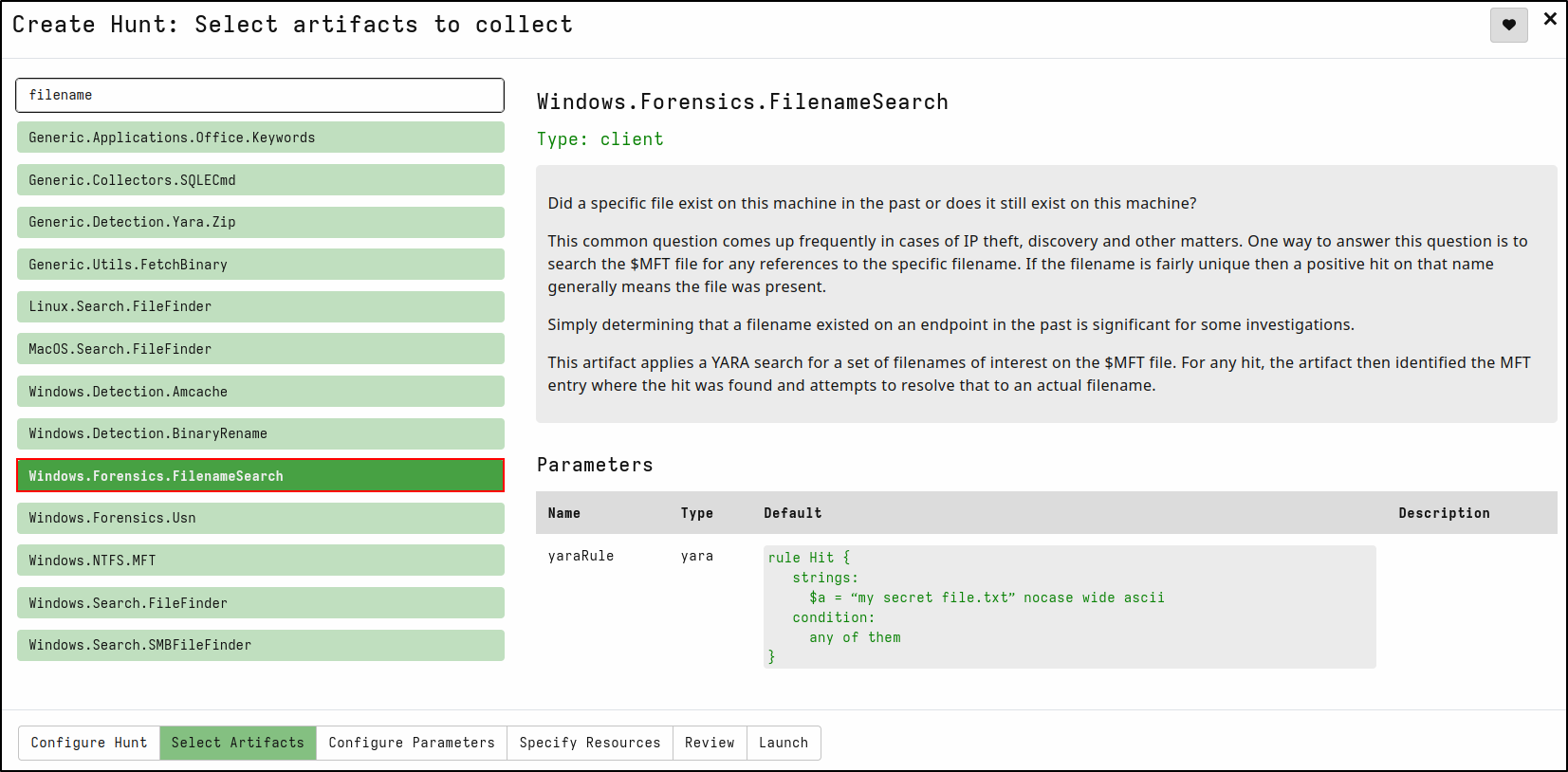
On the Select Artifacts tab, type filename and select Windows.Forensics.FilenameSearch
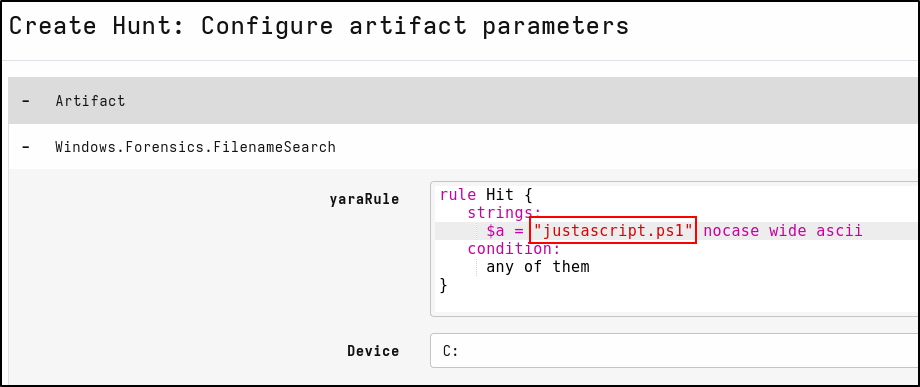
On the Configure Parameters tab, click spanner icon to configure.
In the yaraRule, replace my secret fie.txt with justascript.ps1
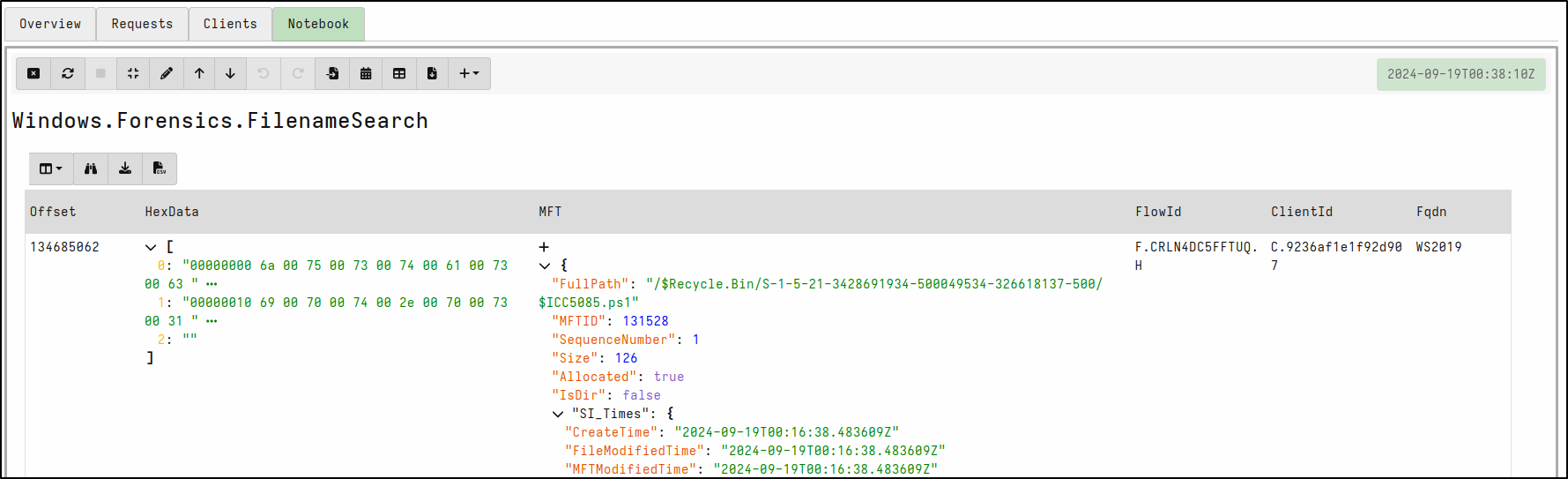
Select Review then Launch. Run hunt by clicking the play icon. Once the hunt is finished, stop the hunt by clicking the stop icon. View results in the Notebook tab. Velociraptor detects that the script is in the Recycle bin.
Creating a Hash Hunt
In the preserved controlled demonstration, a Mimikatz executable was copied to
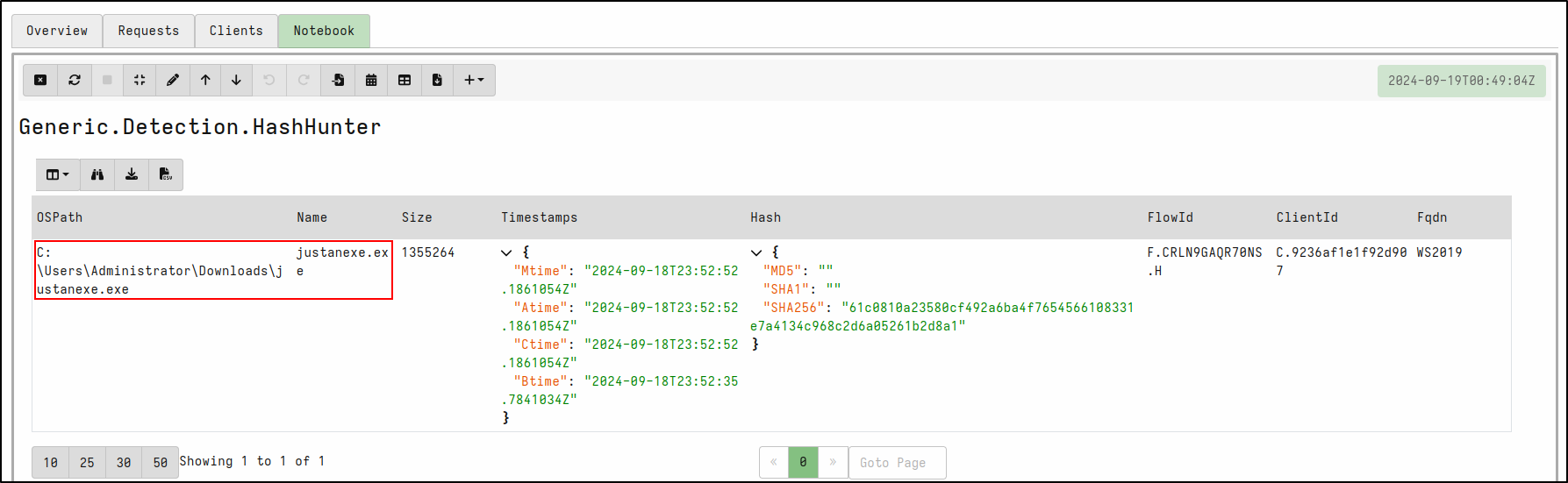
the Windows client and renamed justanexe.exe. Do not reproduce this payload
for the SUSA exercise; use a harmless file with a known SHA-256 value.
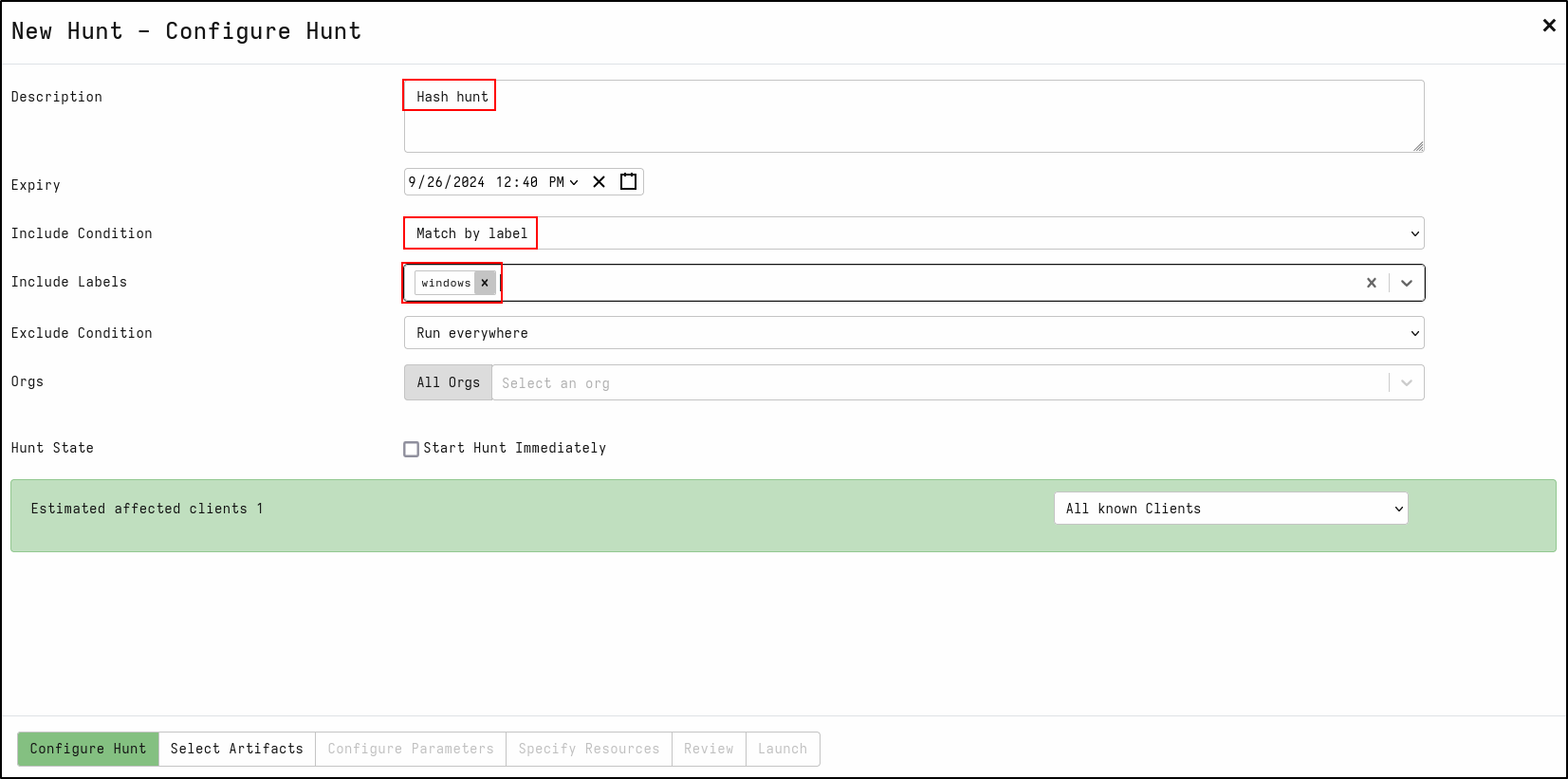
Create a new hunt with the description Hash Hunt
For Include Condition, select Match by label
For Include Labels, select windows
On the Select Artifacts tab, type hash and select Generic.Detection.HashHunter
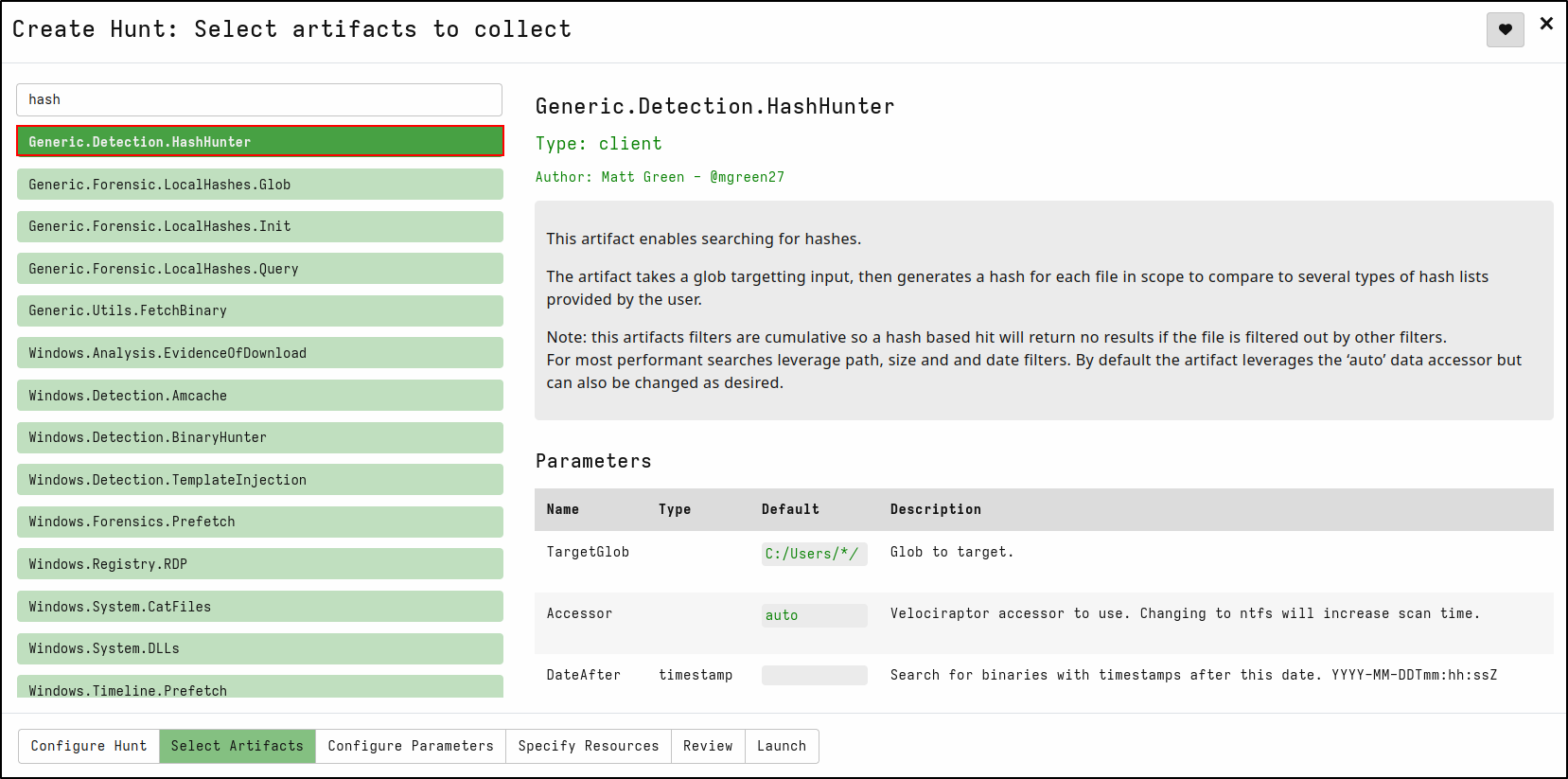
On the Configure Parameters tab, click spanner icon to configure.
On SHA256List, copy and paste sha256 hash of mimikatz.exe 61c0810a23580cf492a6ba4f7654566108331e7a4134c968c2d6a05261b2d8a1
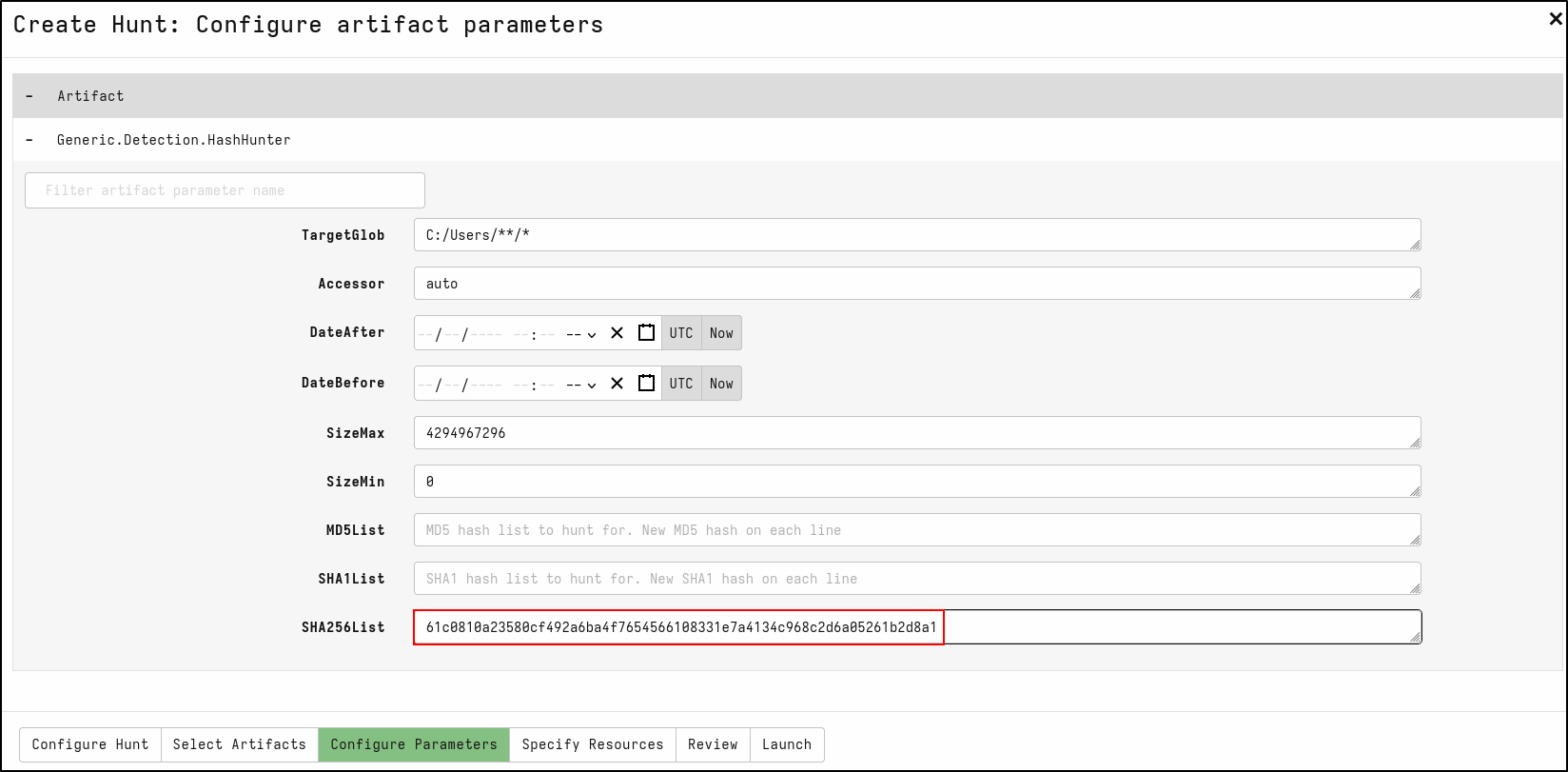
Select Launch. Run hunt by clicking the play icon. Once the hunt is finished, stop the hunt by clicking the stop icon. View results in the Notebook tab. Velociraptor matches the SHA256 hash with justanexe.exe
Interpret and preserve the result
A filename or hash match supports file presence at the returned path and collection time. It does not by itself prove execution, compromise or user intent. Preserve the hunt and flow identifiers, client ID, artefact and parameters, scope, logs, row count, representative exports, notebook context, time zone and limitations. Correlate significant results with process, event, filesystem, memory or network evidence.